How to Setup Discounts on a Shopify Store
 WpAppBuilder
Running discounts on your Shopify store isn’t just about slashing prices; it’s about creating moments that make customers stop, look, and buy. Maybe you want to reward your regular buyers, push slow-moving stock, or test what really gets people to click “Checkout.” Whatever the goal, a smart discount can move the needle fast.
Shopify gives you plenty of ways to do that. You can add simple discount codes, set up automatic price drops, or even use apps that personalize offers for each shopper. But here’s the thing: most store owners don’t use Shopify discounts to their full potential. They either run random sales or forget to track how well their offers actually perform.
In this guide, we’ll walk through how to set up discounts on Shopify the right way, step by step. You’ll also learn a few pro tips on using discount apps, checkout extensions, and other tools that make your offers work harder for you. For the best of your knowledge, you can also work with some of the best discount Shopify apps to make things easier for you.
How Discounts Improve AOV and Conversion Rates
1. They Push People to Spend a Bit More
It’s funny how a small offer can change buying behavior. When shoppers see “Get 10% off orders above $50,” they’ll often throw in one extra item just to cross that mark.
It doesn’t feel forced it feels smart. That’s how you quietly lift your average order value (AOV) without needing a big discount.
2. Urgency Makes People Act Faster
Deadlines work. A 24-hour flash sale or “Only today” banner gets people off the fence. When they know the deal’s ticking away, they check out faster.
3. Discount Helps with Abandoned Carts
Usually, people add products in the cart and then just forget. A quick “Hey, here’s 5% off if you finish your order” email often gets that sale back. It’s simple psychology: people love feeling like they’re getting a small win.
4. Good Deals Build Trust Over Time
When someone gets a fair discount, they remember it. Maybe you send them a birthday offer or a special code just for being on your list that kind of thing feels personal. Little by little, these moments turn one-time buyers into regulars.
5. They Make Bundles and Add-Ons Feel Natural
No need to push people to spend more. Just bundle things in a way that makes sense. A “Buy 2, get 1 free” or “Add this for 20% off” deal doesn’t feel like a hard sell it feels like a win. The shopper walks away happy, your average order value climbs, and more people notice your other products. Everybody gets something out of it.
Types of Discounts You Can Create on Shopify
- 1. Percentage Discounts: Take a part off the price, like 10% off. Customers notice it and like it.
- 2. Fixed Amount Discounts: Offer fixed amount discounts like flat $50 off or $100 off.
- 3. Free Shipping: Remove delivery costs. Customers like it, and it makes them happy.
- 4. Volume Pricing: Buy more and save more. Works well for products that customers buy more often.
- 5. Buy One Get One (BOGO) Deals: Buy One Get One Offer: Offer Buy one get one free or at lower cost.
- 6. Tiered Discounts: Buy more items and get a bigger discount. Encourages extra purchases.
- 7. Automatic Discounts: The discount shows up at checkout automatically.
- 8. Discount Codes: Give codes like SAVE10 for customers to use at checkout for an instant discount.
- 9. Seasonal Discounts: Give deals during special days like holidays, sales weeks, or your store’s birthday.
- 10. Flash Sales: Short offers that end fast perfect for getting quick sales.
- 11. Bundles and Mix-and-Match: Put a few products together and sell them at a lower price. It makes buying more items easy.
Ways to Set Up Discounts in Your Shopify Store
1. From Your Shopify Admin
The easiest way to get started is straight from your Shopify dashboard. It’s pretty simple, you can set a percentage off, a fixed discount, free shipping, or even a classic “Buy X, Get Y” offer.
You decide how people use it. Maybe you want them to enter a code at checkout, or you want it to apply automatically. Both work fine.
When I’m setting up discounts for a new store, I usually keep it simple. Something like “20% off everything this weekend” is quick to launch and always pulls shoppers back. You don’t need fancy tools to make that work, just a bit of timing and a good offer.
2. Using Shopify Apps
Once you’ve nailed the basics, apps can make your discounts a lot smarter.
Shopify’s built-in options are solid, but they have limits. Apps like AIOD – Automatic Discount go way beyond that.
You can do tiered pricing (spend more, save more), bundle offers, or loyalty-based deals without touching code.
The best part? Many of these apps can stack multiple discounts or trigger them automatically at checkout. No codes, no friction. Your customers get a smoother shopping experience, and you don’t have to babysit every promotion.
If you’re running a store with lots of products or repeat buyers, this setup is a lifesaver. It saves time, keeps things clean, and helps you run discounts that actually feel thought-out, not random.
Shopify’s Built-In Discount Options
Shopify gives you a few discount types that work straight out of the box no extra apps or setup headaches. They’re simple, flexible, and enough to get most stores started.
1. Amount Off Products
Take a set amount or a percentage off specific products or whole collections. It’s perfect when you need to clear out old stock or want everyone to notice your latest arrivals. Picture signs that say “20% off all summer wear” or “₹300 off your favorite mug.” Simple, direct, and people pay attention.
2. Buy X, Get Y
The “Buy one, get one” deal, honestly, it never gets old. Add a second item for free, or just drop the price. People love a good bonus, and you get to clear out more stock faster. Everybody wins.
3. Amount Off Order
Offer a discount on the entire order, not just a single item. Something like, “Get $15 off when you spend $75.” People love deals like this—they’ll add an extra thing or two just to reach the minimum. It’s an easy way to bump up your average order value.
4. Free Shipping
No one likes paying for delivery. Offering free shipping above a certain amount (say, orders over $50) is one of the simplest ways to make customers hit that checkout button faster.
1. Amount Off Products
This discount drops the price on certain products or whole collections. It’s a great way to spark interest in new arrivals, move out old stock, or simply give shoppers a reason to buy more.
Step 1:
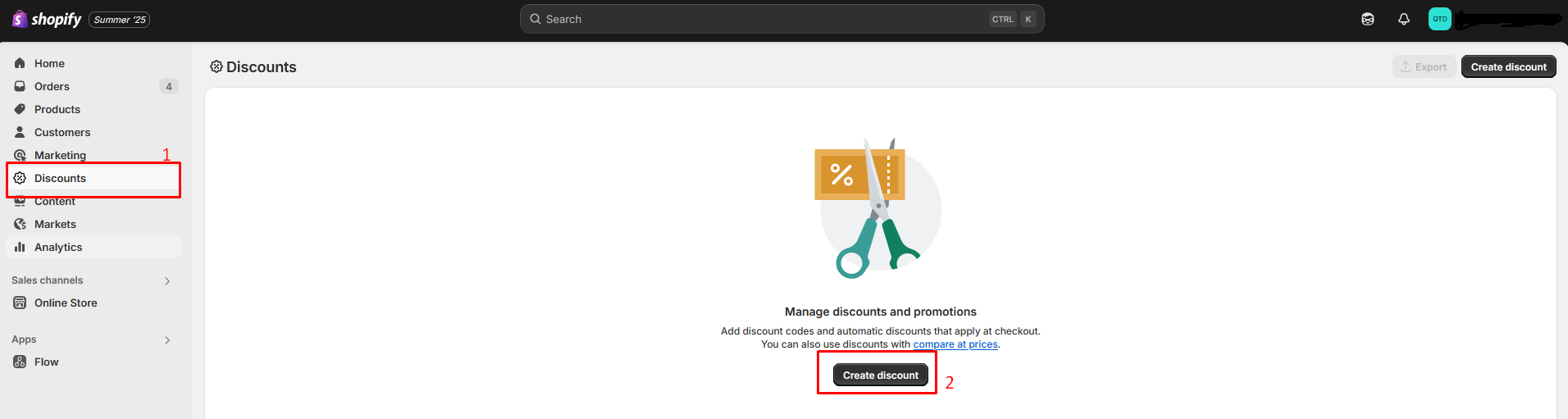
Head over to your Shopify Admin Dashboard. Click on Discounts, then hit Create Discount.
Step 2:
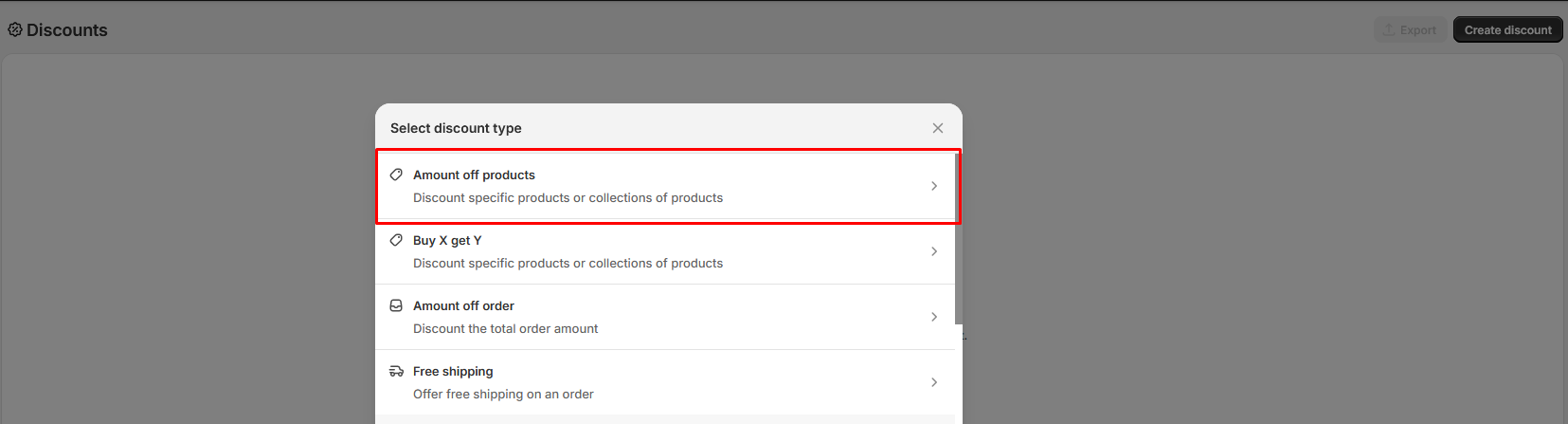
Click on “Amount off products”
Step 3:
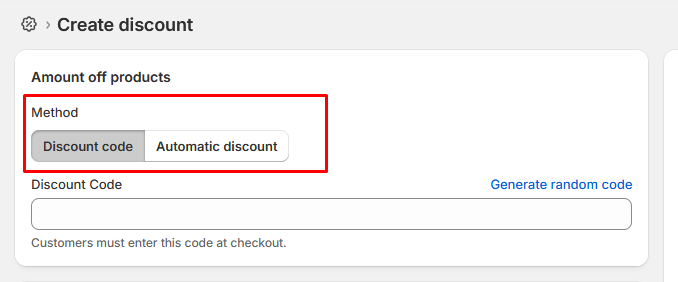
Decide How You Want the Discount to Work
- Automatic Discount: The discount kicks in by itself at checkout. Your customers don’t have to lift a finger.
- Discount Code: Shoppers need to type in a code to get the deal. You can make up your own code or just let Shopify come up with one for you in the admin panel.
Step 4:
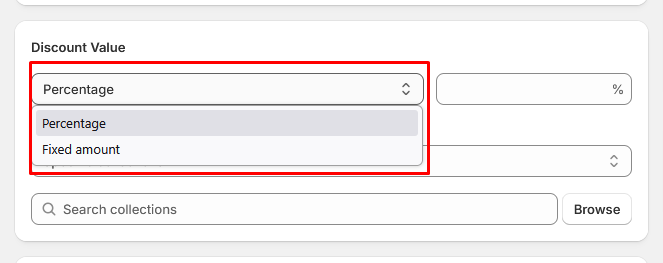
Set the discount value percentage or a fixed amount off.
Step 5:
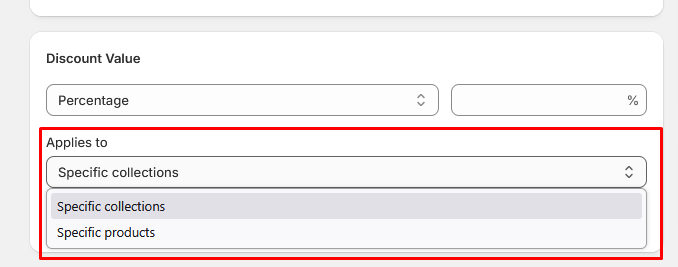
You can target the discount to certain products or collections if you want to put the spotlight on specific items. But if you’re after a storewide deal, just leave everything as is—the discount will go to every product automatically.
Step 6:
Eligibility for the discount.
When you’re setting up a discount, decide who gets it.
- If you want, make it available to everyone, no limits, anyone who shops with you can use it.
- Or maybe you’d rather treat certain groups, like your VIPs, newsletter subscribers, or those customers who keep coming back. Just pick the groups you want.
- You can even get really specific and select individual people for the offer if that’s your style.

Step 7:
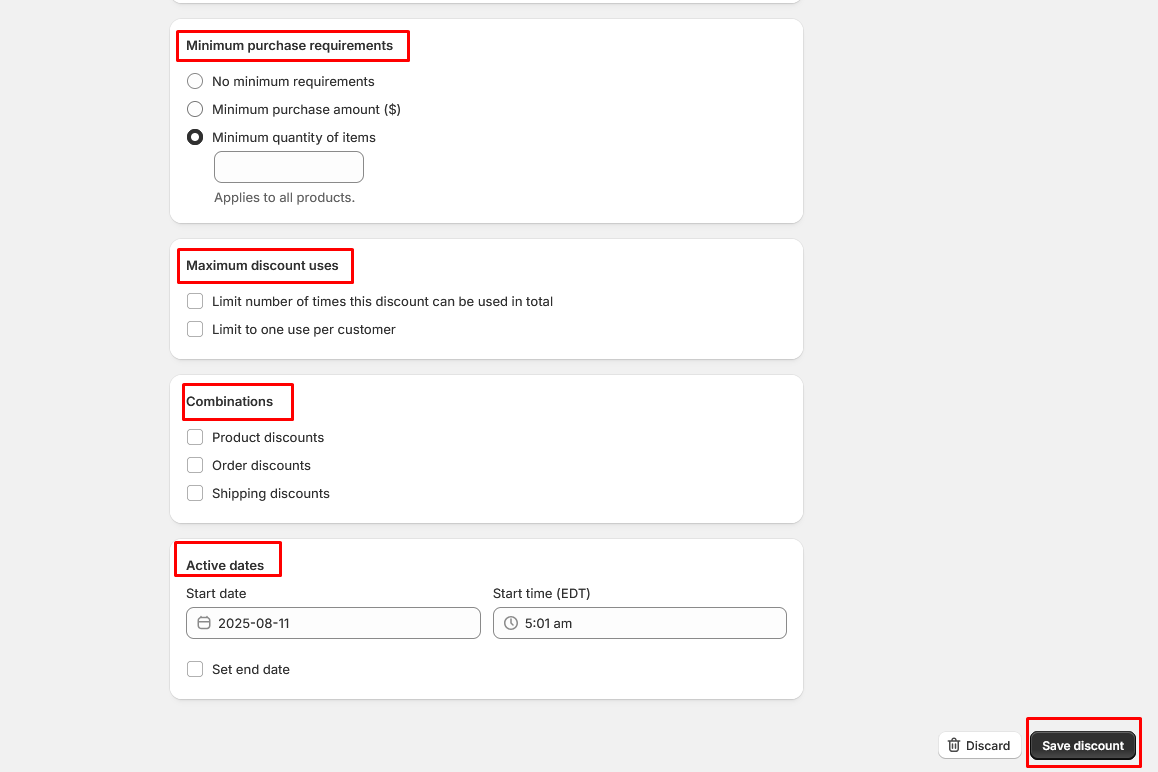
Minimum purchase rules
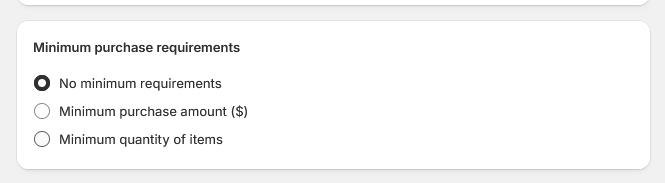
Figure out what people have to do to get the deal.
- No Minimum: Anyone can grab the discount, no matter how much they spend.
- Minimum Spend: Shoppers unlock the deal only if they spend at least the amount you pick.
- Minimum Quantity: The discount kicks in when someone buys at least the number of items you set.
Step 8:
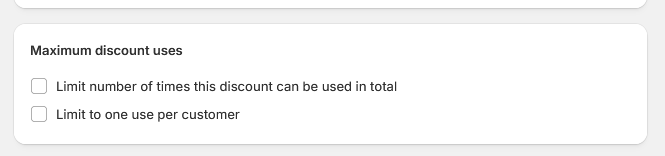
Maximum discount uses
- Here’s where you set some ground rules. Maybe you want the discount to run out after a certain number of uses, just set the total limit for the whole store. Or, if you’d rather each customer only gets one shot, pick the “limit per customer” option. Simple as that.
Step 9:
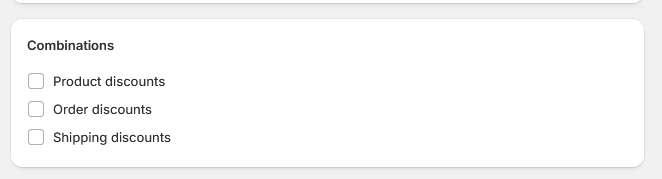
Choose If the Discount Can Be Combined with Others
- Now, decide if you want customers to stack this deal with other offers. You’ve got options. Let it work alongside product discounts, so people can double up on savings for specific items. Or maybe you’re okay with it combining with storewide or cart-level deals. You can even let it team up with free shipping or shipping discounts. It’s up to you, mix and match, or keep things separate.
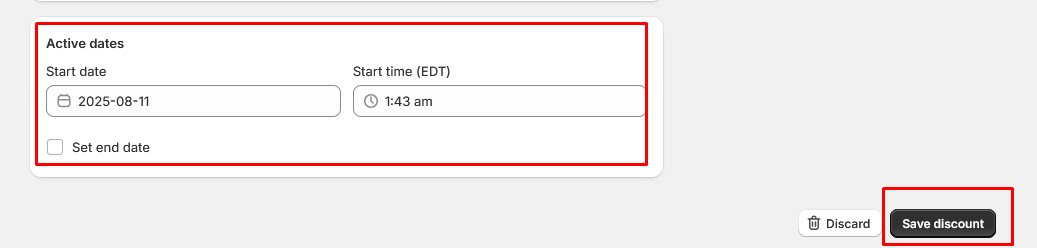
Step 10:
Set Active dates & click “Save discount”
2. Buy X Get Y
With this kind of deal, shoppers pick up a free or cheaper item just by buying a set number of other products. It’s a solid way to nudge people to spend more and move inventory faster.
Step 1:
Open Dashboard > Discounts > Create Discounts
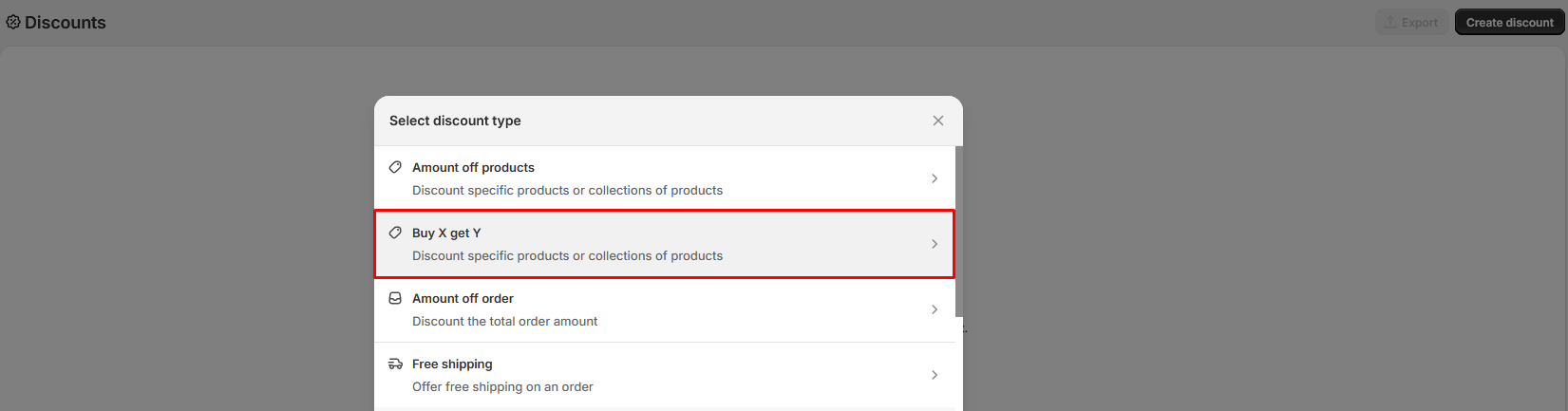
Step 2:
Click on “Buy X get Y”
Step 3:
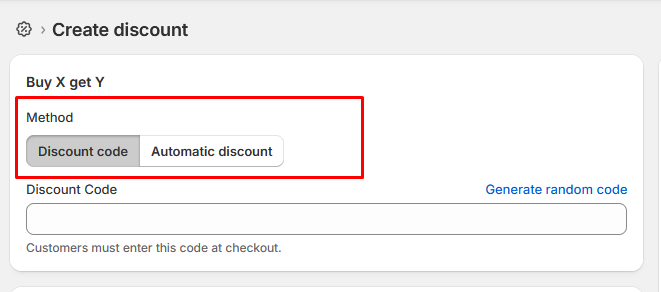
Decide How to Offer the Discount
You’ve got two options for setting up a Buy X, Get Y offer:
- Automatic Discount: The deal kicks in by itself at checkout—no code, no extra steps.
- Discount Code: Customers type in a promo code you make in your Shopify admin to get the deal.
Step 4:
Customer buys rule creation.
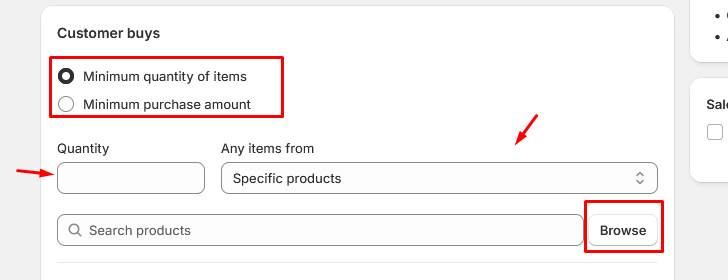
Choose How the Deal Works: Do you want the discount to kick in when someone buys a certain number of items, like “Buy 2,” or do you want it to apply when they spend a specific amount, like “Spend $50”?
Set the Number or Amount: Enter exactly how many items people need to buy, or the minimum amount they need to spend to unlock the deal.
Select Product Scope: Decide if the offer covers certain products or if it applies to whole collections in your store.
Browse & Add Products: Click Browse to pick the main products that trigger the deal. These are the “Buy X” items. Once a customer buys them, the “Get Y” discount will activate.
Step 5:
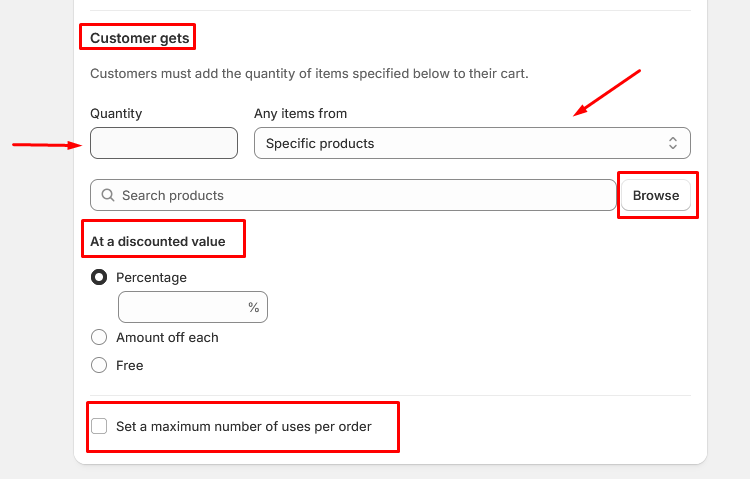
Customer gets (Customers must add the quantity of items specified below to their cart.)
Quantity: Type in the number of items the customer gets with this deal.
Any Items From: Pick whether the offer covers certain products or whole collections.
Browse: Click “Browse” and pick the exact products you want customers to grab for free or at a discount.
Set How the Discount Applies: Choose if you want to offer a percentage off, or just make the item totally free.
Set Maximum Uses Per Order: Decide how many times someone can use this deal in one order, like, just one freebie each time they check out.
Step 6:
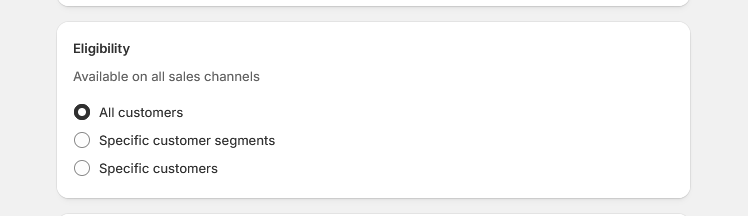
Who can use the discount
Figure out who gets access to this deal.
- You can open it up to everyone; anyone who shops with you can use the discount. Or, if you want to keep it exclusive, pick certain groups. Maybe it’s just for your VIPs, people who get your newsletter, or loyal customers who keep coming back. You can even handpick specific customers if you like.
Step 7:
Maximum discount uses
Setting Limits:
- You decide how many times people can use this discount. Put a cap on the total uses in your store, or let each customer use it only once. It’s up to you.
Step 8:
Combinations
Think about whether this discount plays well with others.
- Can shoppers use it along with other product discounts? What about order-wide promos or deals on shipping? If you want, you can let people combine offers, or you can keep this one separate.
Step 10:
Set Active dates & click “Save discount”
2. Amount Off Order
This type of discount cuts down the total order value, either by a set amount or a percentage. It covers the whole cart, not just certain products, so it’s great for big storewide deals, holiday sales, or those “spend more, save more” offers
Step 1:
Open Dashboard > Discounts > Create Discounts
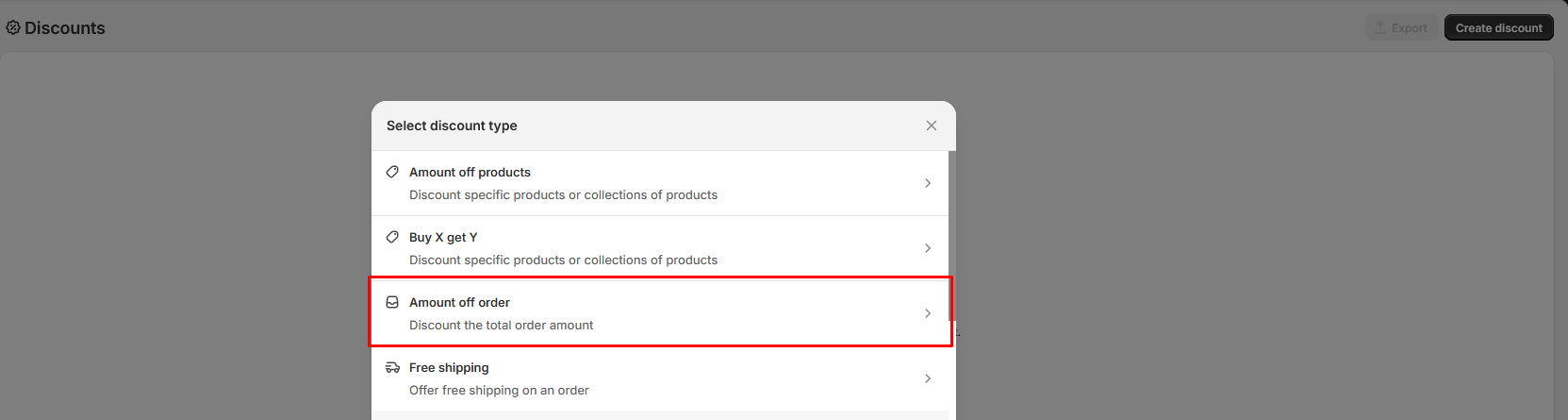
Step 2:
Click on “Amount off order”
Step 3:
Creating discounts
How do you want the discount to work?
You can go with a discount code, shoppers type in a special code at checkout and snag the deal. Or skip the code altogether and make it automatic. If someone qualifies, the discount just pops up, no extra steps.
Want to get really specific? You can handpick exactly who gets the offer, one person at a time.

Step 4:
Create rules
Minimum Purchase Requirements:
Pick when the discount applies.
Maximum Discount Uses:
You decide how many times people can use this discount. Limit it across all customers, or just let each person use it once, whatever fits your plan.
Combinations:
Think about stacking. Can customers use this discount with other deals..
Active Dates:
Pick when the discount should start and end. You can set specific dates and times to run the offer automatically.
4. Free Shipping
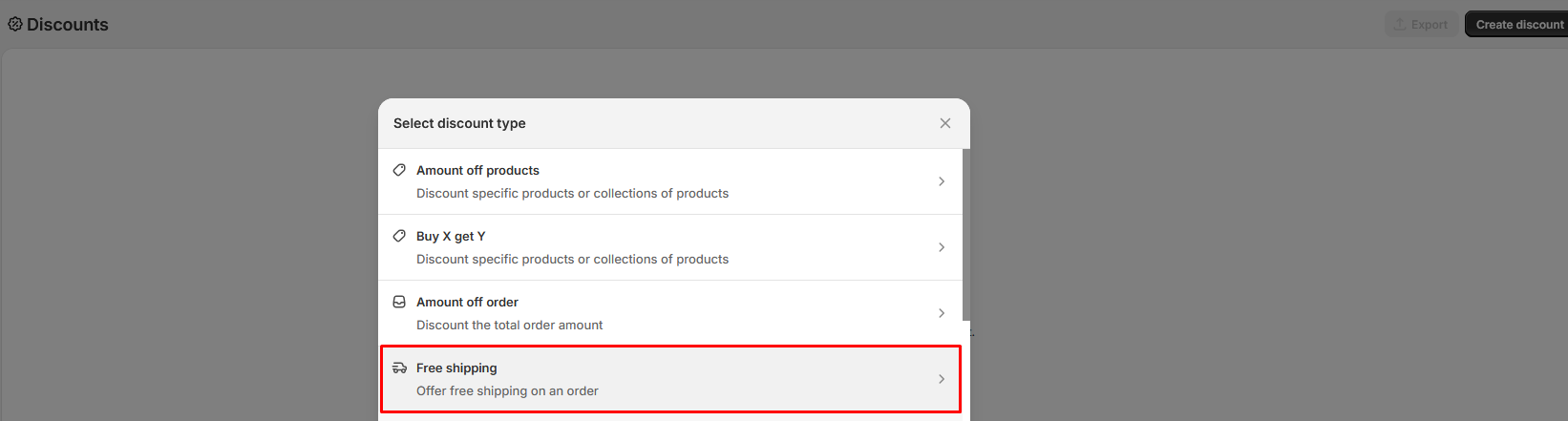
This discount covers shipping costs for the orders you choose. You get to decide who qualifies, set a minimum order amount, pick certain delivery zones, or focus on groups like loyal customers.
Step 1:
Open Dashboard > Discounts > Create Discounts
Step 2:
Click on “Free shipping”
Step 3:
Decide how you want customers to get the discount.
- Automatic Discount: Super simple. The discount pops up right at checkout—no action needed from your customers.
- Discount Code: Or, go with a code. Shoppers type in a special code at checkout to get the deal. You get to create that code yourself in your Shopify admin.
Step 4:
Choose Where the Free Shipping Applies
- All Countries: The free shipping offer will apply to every country you ship to.
- Selected Countries: Pick specific countries where you want to offer free shipping.
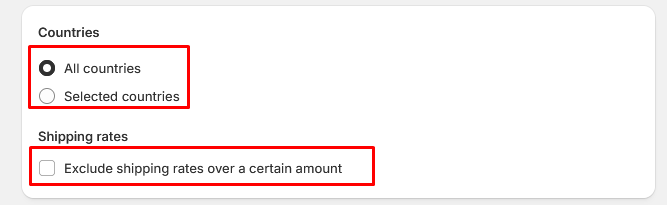
Shipping rates: If you want to exclude higher shipping costs, check this option and enter the maximum rate eligible for free shipping. Any shipping rate above this amount won’t qualify for the offer.
Step 5:
Eligibility of the discount.
- All Customers: Open it up to everyone who shops on your site.
- Specific Customer Segments: Aim the offer at VIPs, your email list, or regulars.
- Specific Customers: If you want, just pick certain people to get the deal.
Step 6:
Minimum purchase requirements
You can keep it simple and let everyone have the deal, no matter what they spend. Or, set a minimum, for example, customers need to hit a certain amount before the discount applies. Another way is to ask them to buy a certain number of items first. It’s up to you.
Step 7:
Limit Discount Usage
- Now decide how many times people can use the discount. You might want to cap the total number of uses for the whole store. Or, if you’d rather, just let each customer use it once.
Step 8:
Combinations
Choose whether this discount can be used together with others:
Product Discounts: Let customers stack it with other product-based offers.
Order Discounts: Allow it to work alongside cart-wide promotions.
Step 9:
Set Active dates & click “Save discount”
Why Use Third-Party Discount Apps on Shopify
Shopify’s built-in discounts are a nice starting point: percentage off, set prices, free shipping, those classic “Buy X, Get Y” deals. Perfect if you just need something simple.
But let’s be honest, it doesn’t take long before you want more control. Maybe you want discounts to show up only for certain collections. Maybe you’re tired of sending out codes all the time and just want loyal customers to get perks automatically. Shopify alone can’t pull that off.
Third-party apps let you build smarter, more flexible promotions that actually match how people shop. With these apps, you can:
- Reward loyal customers without updating hundreds of products by hand
- Set discounts based on things like cart total, location, or how often someone orders
- Let customers stack multiple deals at checkout (something Shopify can’t do out of the box)
- Run automatic offers that work in the background without any effort from you
Take AIOD – All-in-One Discount. With it, you can layer deals: 10% off when someone spends $100, then add free shipping if they hit $200. Set your rules once, and you’re done.
If you want to seriously boost sales, this is the way to go. Everything runs automatically, your offers stay consistent, and you get better results with way less hassle. More conversions, higher average order value, and you free up your time to focus on bigger things.
Conclusion
Discounts are probably the simplest way to jumpstart sales in your Shopify store. They attract new shoppers, bring back past customers, and give people a reason to buy now, but only if you use them well.
The goal isn’t to hand out random discounts. You need a plan. Pick the right deal, focus on the right audience, and actually track what works.
Try a new discount strategy this week. See how your customers respond. You’ll learn fast what gets them excited.
FAQs
1. How do I set up a discount on Shopify?
To set up a discount on Shopify, jump into your Shopify Admin and find Discounts. Click Create Discount. Now, choose whether you want a discount code or something automatic. Decide on the type, maybe it’s a percentage off, a fixed amount, free shipping, or a Buy X, Get Y deal. Set your rules, save it, and that’s it.
2. What’s the difference between an automatic discount and a discount code?
Automatic discounts appear at checkout all by themselves, your customer doesn’t have to do a thing. With discount codes, people have to type in the code to get the deal. Both work fine, but automatic discounts keep things simple.
3. Can I use more than one discount at once?
Shopify only lets you use one discount per order.
Related blogs