How to Publish Your Shopify App on Google Play Store
 WpAppBuilder
Once your Shopify store starts doing well, the next step is always to think beyond just a website. You want your brand to be right there, living on your customers’ phones, not lost in a sea of browser tabs. That’s usually the point when the idea of launching a mobile app pops up. If you built your app with Mobile App Builder by WebPlanex, the next big thing is putting it on the Google Play Store. At first look, the whole process may look a little complicated, especially if you’re new to this.
Before You Start: A Few Things to Keep Ready
Before logging into Google Play Console or uploading anything, it helps to get a few basics in place.
You’ll need a Google account that you want to use as your developer account. Google charges a one-time registration fee for this, and once it’s done, you can publish as many apps as you want under the same account.
You should also have:
- Your app name has been finalized
- A short description of what your app does
- A few screenshots from the app
- Your store’s privacy policy link
Having these ready upfront saves a lot of back and forth later.
Building the App
You can use apps that turn your Shopify store into a functioning app or get an expert Shopify developer to turn your Shopify store into an app. We recommend apps like Mobile App Builder, which takes what your Shopify store already does well and brings it straight into a mobile app. Your products, collections, cart, and checkout pull straight from Shopify, no need to enter anything twice. Everything shows up automatically and looks great on any phone.
From the Mobile App Builder dashboard, you can:
- Connect your Shopify store
- Customize colors, branding, and navigation
- Preview the app.
Once everything is set up, you can generate the Android app file. This file is what you’ll eventually upload to Google Play. You don’t need to write code or configure complex settings — Mobile App Builder handles that part for you.
Setting Up Your App in Google Play Console
Sign in to the Google Play Console. They’ll ask for your app’s name, the main language, and whether you want it to be free or paid. None of this is public yet. You’re just getting things set up. After that, Google guides you through a bunch of sections you need to fill out before your app actually goes live.
Adding Store Listing Details
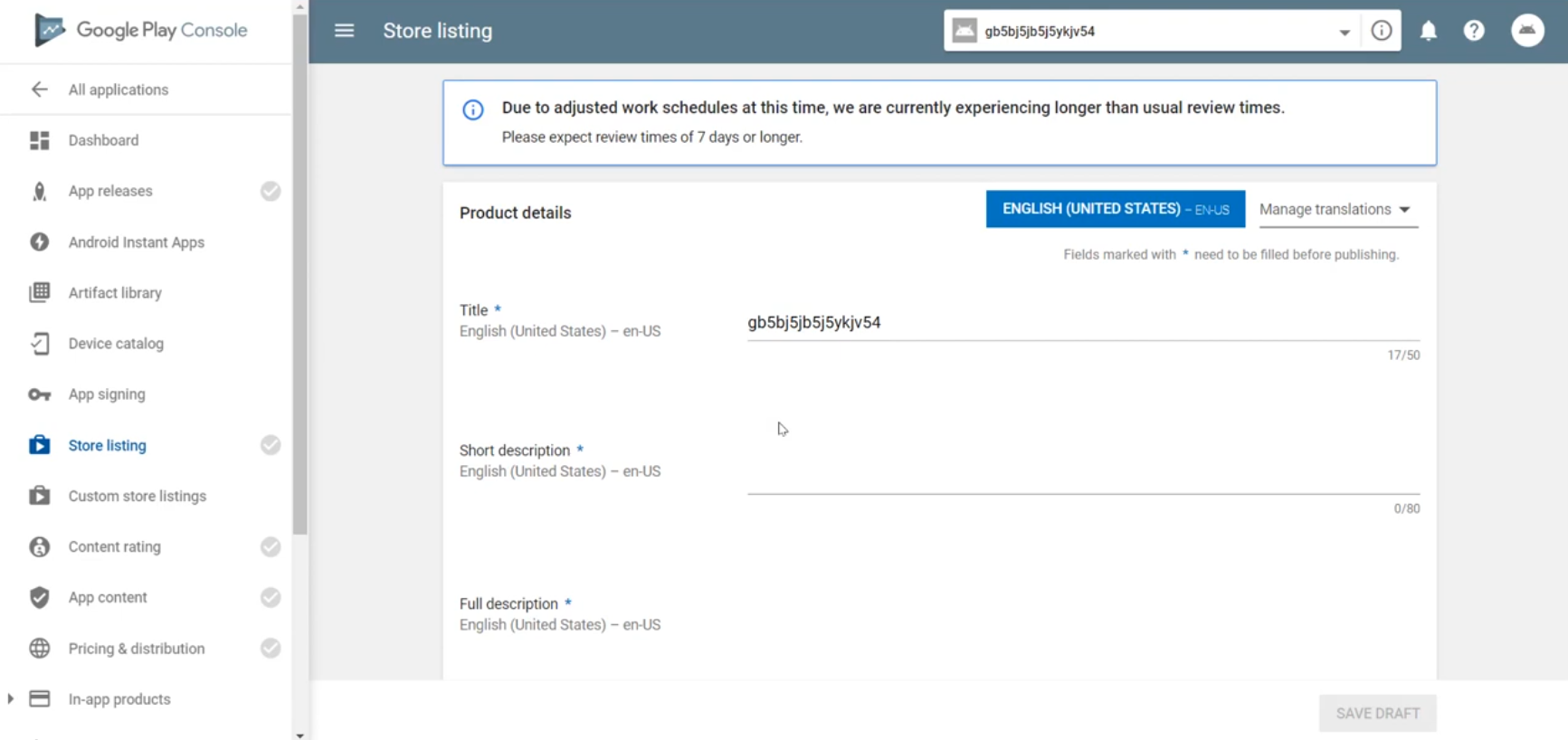
This is the part users actually see on the Play Store, so it’s worth spending some time here.
You’ll be asked to add:
- A short description (this appears right below the app name)
- A longer description explaining what your Shopify app offers
- App screenshots that show real screens like home, product listing, and checkout
- An app icon and feature graphic
Try to describe your app in a way you’d explain it to a customer, don’t make it like a technical document.
Uploading the App File
Next comes uploading the app file generated by Mobile App Builder. Google currently prefers the Android App Bundle (AAB) format, which Mobile App Builder supports.
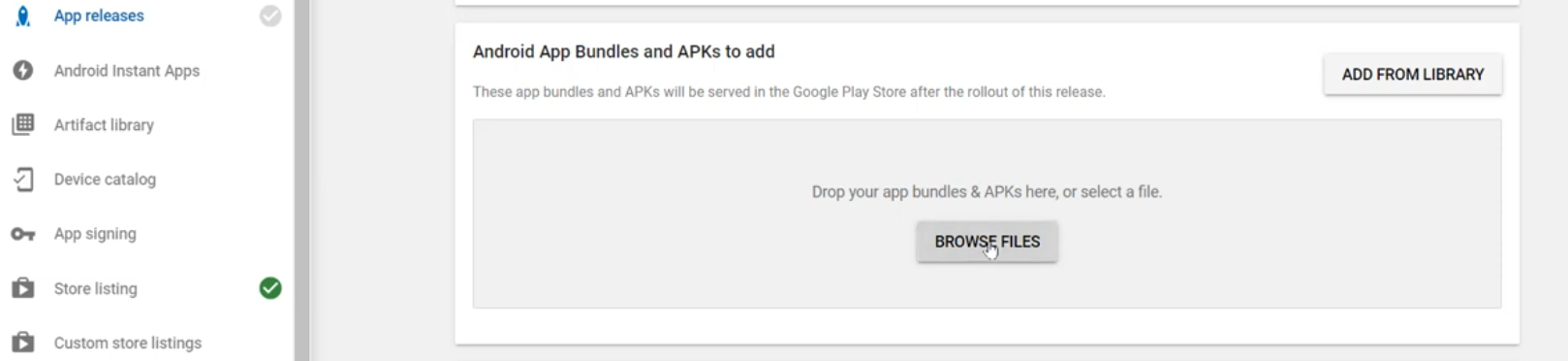
Upload your app files and visual assets:
- 1. App Package (AAB or APK): Choose the format generated by Mobile App Builder.
- 2. App Icon
- 3. Screenshots: Upload high-quality screenshots of homescreen, product list, cart, and checkout.
- 4. Feature Graphic: A banner used by Google Play to promote your app.
Make sure all images meet Google’s required size and quality standards.
Once uploaded, Google will automatically check the file for basic issues. If something needs attention, the console will usually point it out clearly.
Privacy Policy and Content Details
Google is strict about user privacy, especially for shopping apps.
You’ll need to provide:
- A valid privacy policy URL
- Answers to a short content and data safety questionnaire
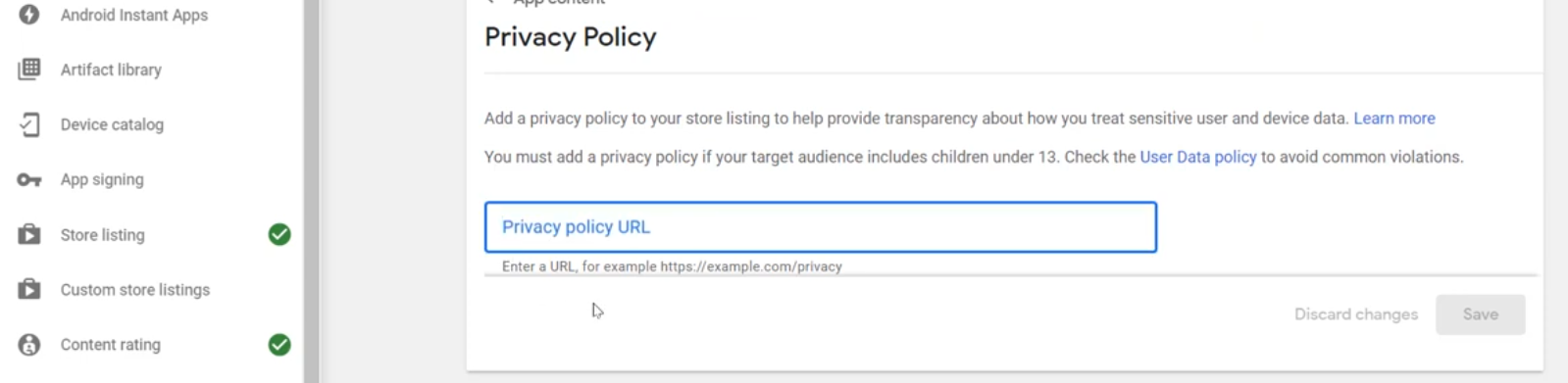
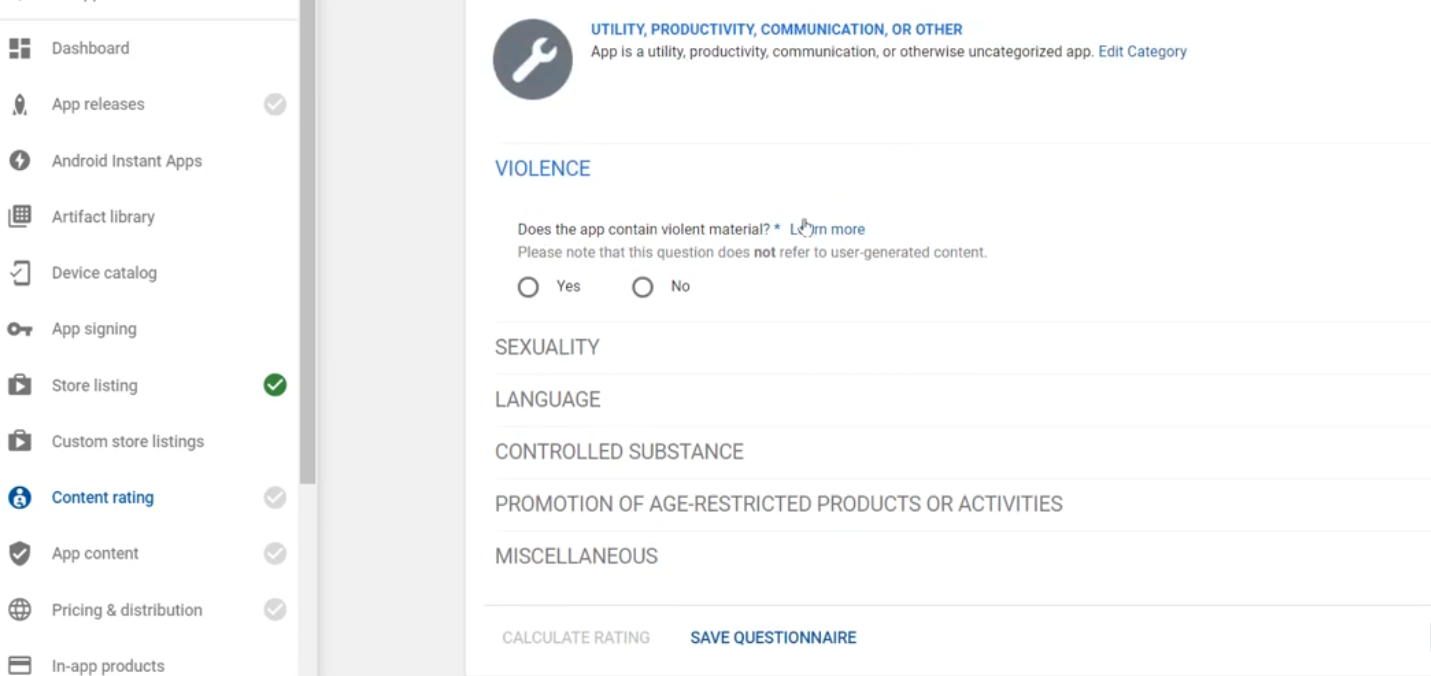
If your app simply displays your Shopify store and processes orders through Shopify, these questions are usually straightforward to answer.
Submitting for Review
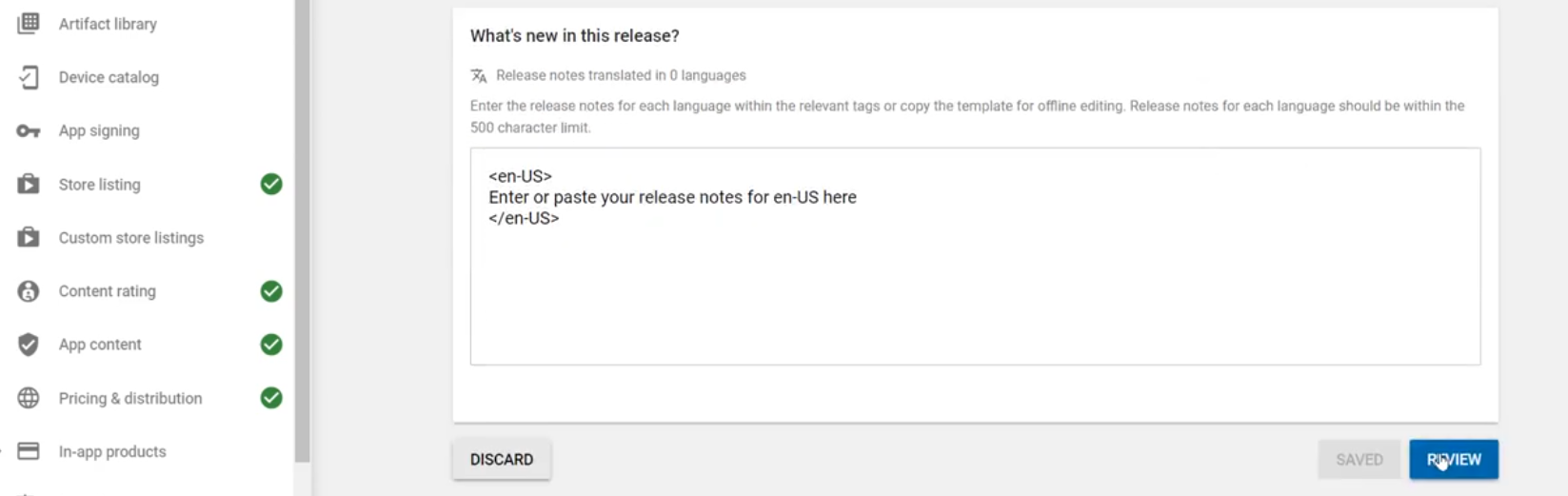
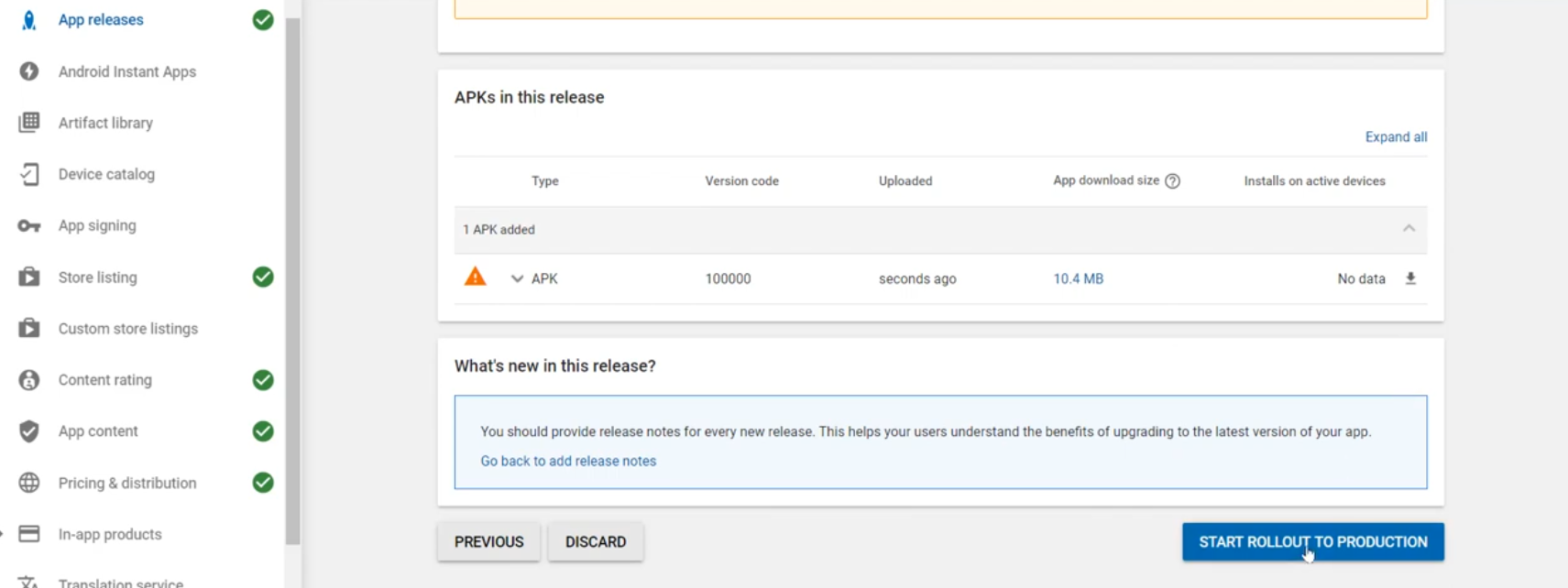
When you see a green check on every section, you can submit your app for review. Google responds quickly. Usually, they reply within a day, but can also take a bit longer under different circumstances, and if there are some issues that need to be fixed, Google will let you know by sending a message in the console.
After Going Live
Once your app goes live, people can finally find your app in the Google Play Store. They can download it, go through your app and products in it, place orders, and get required updates or notifications.
From this point on, you can:
- Track installs and user behavior through Play Console
- Push app updates when needed
- Use app engagement tools like notifications to stay connected with customers
Publishing your Shopify app may feel like a big milestone, and it is. But with a tool like Mobile App Builder by WebPlanex, the technical barriers are significantly lower, allowing you to focus on growing your business instead of worrying about app development.
Related blogs